
Introduction
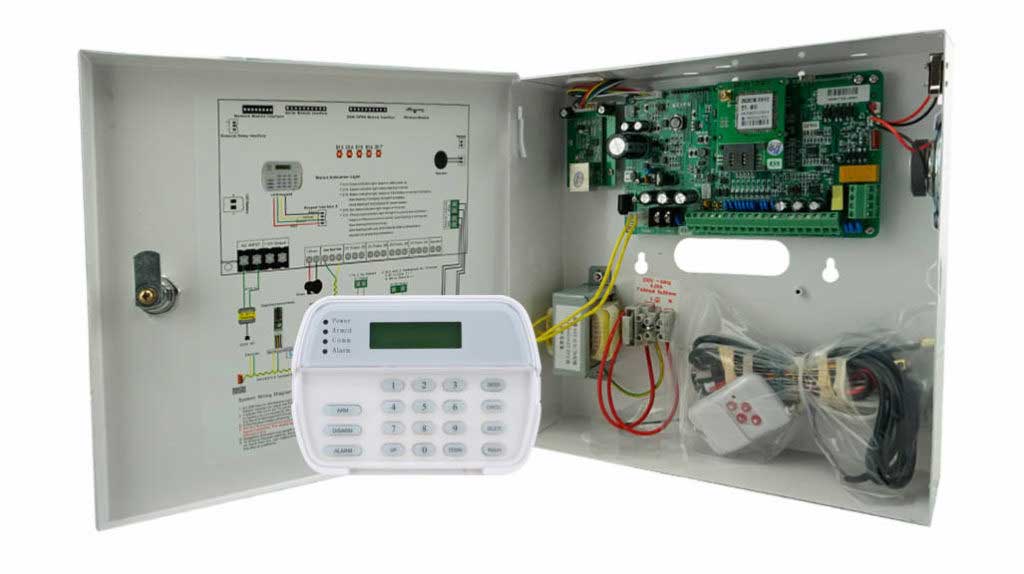
When an alarm control panel suddenly reports a fault, goes offline, or begins generating repeated false alarms, the security performance of the entire site can be compromised. Whether protecting a retail chain, warehouse, or data center, delays in fault diagnosis can lead to operational downtime and increased risk. In situations like these, being able to quickly access event logs or interpret error codes on the alarm control panel becomes one of the most effective ways to pinpoint the root cause.
Event logs and error codes are essential diagnostic tools built into modern intrusion detection systems. They provide detailed records of system activities, alarms, supervisory events, and component failures, enabling technicians and decision-makers to identify issues with accuracy and confidence.
This guide offers practical, step-by-step instructions for accessing and interpreting event logs and error codes on professional burglar alarm control panels. It is specifically designed for security technicians, product managers, procurement leaders, and organizations responsible for large-scale security deployments. By understanding how to retrieve logs or decode alarm system error codes, readers can reduce troubleshooting time, improve system reliability, and make informed procurement decisions.
Section 1: Understanding Event Logs and Error Codes in Alarm Control Panels
What Are Event Logs?
Event logs are chronological records generated by an alarm control panel. These entries document:
- Arming and disarming events
- Alarm activations
- Zone faults and restorals
- Low-battery conditions
- Power loss and recovery
- Tamper events
- Communication failures
Most commercial-grade systems—such as Honeywell (Resideo), DSC PowerSeries, Bosch G-Series, and Texecom Premier—provide detailed log structures accessible via keypad, programming software, or monitoring center interfaces.
What Are Error Codes?
Error codes are alphanumeric identifiers that indicate specific system faults. Common categories include:
- Communication errors
- Sensor or zone wiring faults
- Backup battery failures
- Tamper or enclosure issues
- Module supervision failures
- Network/IP signaling disruptions
Understanding these codes allows professionals to diagnose issues without needing to open the control panel immediately.
Why Logs and Error Codes Matter
Event logs and error codes are widely recognized in security standards such as UL 681 – Installation and Classification of Burglar and Holdup Alarm Systems, which stresses the importance of maintaining accurate system diagnostics for reliability and compliance.
Logs and codes support:
- Proactive maintenance
- False alarm reduction
- Verification of user behavior
- Compliance with corporate security policies
- Efficient troubleshooting
- Performance evaluation of different alarm control panel models during procurement
Common log examples include: “ZONE 05 FAULT – OPEN CIRCUIT”, “AC LOSS”, “RF SUPERVISION TROUBLE”, or “COMM FAIL—IP1.”
Section 2: Step-by-Step Guide to Accessing Event Logs and Error Codes
Preparing to Access the Alarm Control Panel
Before accessing system logs:
- Ensure authorization – Use the installer or master code, or verify access through the organization’s security policy.
- Follow safety procedures – Avoid opening wired control panels without isolating power if hardware inspection is required later.
- Have the right tools –
- System keypad
- Installer-level programming code
- Manufacturer software (e.g., Honeywell Compass, DSC DLS)
- Connecting cables (RS-232/USB) or IP interface credentials
- Firmware version documentation
Method 1: Accessing Logs via Keypad Interface
Most alarm control panels allow direct log retrieval via keypad:
- Enter Installer Menu or User Log Menu.
- Navigate to Event Log, System Log, History, or similar.
- Scroll through entries by timestamp.
- Note associated error codes, zone numbers, and user IDs.
This method is commonly used on systems like DSC PowerSeries, Paradox EVO, and Honeywell Vista.
Method 2: Using Programming Software
For more advanced diagnostics, particularly in enterprise settings, technicians retrieve logs using proprietary software:
- Honeywell Compass
- DSC DLS5
- Bosch Remote Programming Software (RPS)
- Texecom Wintex
Advantages include:
- Downloading full logs (sometimes thousands of entries)
- Searching and filtering
- Exporting logs for reporting or auditing
- Viewing module-level error codes (e.g., RF receiver faults, IP communicator errors)
This method is ideal for large deployments or when documentation is needed for procurement and vendor evaluation.
Method 3: Accessing Logs from IP-Based or Hybrid Alarm Panels
Modern IP and hybrid alarms allow remote log access:
- Via secure web interface
- Through mobile apps (professional versions)
- Over monitoring center APIs
- Using IP communicators or cloud-based diagnostic tools
Troubleshooting Access Issues
Common problems and solutions:
- Unable to enter installer mode – Verify code privileges or perform an authorized reset.
- Incorrect timestamps – Synchronize panel time or check NTP settings for IP-based systems.
- No logs displayed – Panel memory may be corrupted; consider firmware updates or module replacement.
- Communication software cannot connect – Check interface wiring (USB–RS-232), IP settings, or firewall rules.
Section 3: Interpreting Error Codes and Event Logs for Diagnosis
Decoding Common Error Codes
Below is a practical reference list (codes vary by manufacturer):
| Error Code | Meaning | Recommended Action |
|---|---|---|
| E01 / BAT LOW | Backup battery failure | Replace battery, test charging circuit |
| E02 / AC LOSS | Main power failure | Check transformer, wiring, AC outlet |
| E03 / COMM FAIL | Communication trouble (PSTN/IP/cellular) | Verify network, SIM, PSTN line, or communicator module |
| E06 / ZONE FAULT | Open/short circuit on zone | Inspect wiring, sensors, resistor placement |
| E14 / RF SUPERVISION LOSS | Wireless device not reporting | Check distance, interference, battery, device failure |
| E20 / TAMPER | Tamper detected on panel/device | Inspect enclosure, wiring, mounting |
These examples apply broadly across systems from Bosch, Honeywell, DSC, and other major vendors.
Analyzing Event Logs for Root Cause Diagnosis
To interpret logs effectively:
- Start with the first occurrence, not the latest error. This reveals the true point of failure.
- Review timestamps and sequences – For example, RF supervision trouble often appears after low battery warnings.
- Identify patterns – Repeated communication failures at night may indicate network maintenance or power instability.
- Correlate with external systems – Access control, CCTV, or environmental systems may influence alarms.
- Check historical trends – A zone that generates faults frequently may require hardware replacement or relocation.
Field Example (Anonymized)
A logistics facility repeatedly reported COMM FAIL – IP1.
Event logs revealed:
- Multiple power dips
- Router reboot events matching alarm timestamps
- Lost communication from cellular backup
Diagnosis: unstable UPS triggering modem resets.
Outcome: upgrading the UPS and enabling auto-recovery solved the issue. Such examples are crucial for procurement teams evaluating panel reliability and network dependencies.
Using Logs for Procurement Decisions
Procurement decision-makers should evaluate:
- Log depth (number of entries retained)
- Availability of remote diagnostics
- Clarity of error code documentation
- Integration with monitoring platforms
Systems with richer diagnostic data reduce maintenance costs and lower MTTR (Mean Time to Repair).
Section 4: Best Practices for Preventive Maintenance and Issue Prevention
To maintain long-term system reliability:
1. Regular Log Reviews
Schedule monthly or quarterly reviews to identify recurring issues.
2. Enable Automated Alerts
Many IP panels support push notifications or automated email reporting of key events.
3. Use Diagnostic Software
Choose control panels that support:
- Advanced log filtering
- Remote diagnostics
- Firmware upgrade visibility
4. Train Technical Teams
Ensure technicians understand manufacturer-specific log structures, especially when managing multiple panel brands.
5. Incorporate Log Capabilities in Procurement Evaluation
When procuring alarm control panels in bulk, assess:
- Log export functionality
- Error code documentation completeness
- Cloud-based diagnostic options
- Module-level reporting capability
These features directly impact maintenance workloads and long-term security performance.
Conclusion
Event logs and error codes are among the most powerful diagnostic tools available in modern intrusion alarm systems. By understanding how to access logs—whether via keypad, software, or IP platform—and interpret error codes with accuracy, security professionals can dramatically reduce system downtime, enhance protection, and streamline maintenance operations.
For procurement teams, evaluating alarm control panels based on their diagnostic transparency and log accessibility is essential for ensuring long-term operational efficiency.
As the industry continues evolving, emerging technologies such as AI-driven log analysis and predictive maintenance will further enhance troubleshooting efficiency. Staying updated with industry standards and manufacturer documentation ensures continued reliability and compliance.