
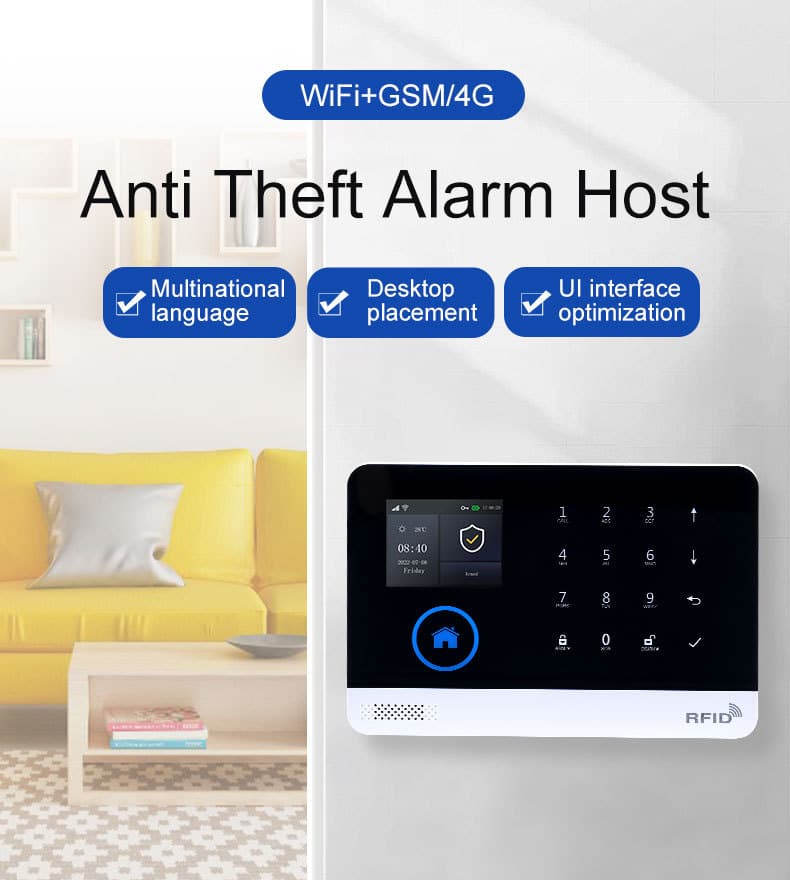
Introduction: Why the Touchscreen Control Panel Has Become the Brain of Modern Burglar Alarm Systems
In the professional burglar alarm industry, technology trends come and go. Wireless sensors evolve. Communication paths change. Cloud platforms rise and fall.
But one component has quietly become the true operational core of modern intrusion alarm systems:
The touchscreen control panel.
For bulk purchasers, system integrators, distributors, and security project decision-makers, the touchscreen control panel is no longer a cosmetic upgrade. It directly determines:
• Whether an alarm system is actually used correctly
• Whether false alarms are reduced or multiplied
• Whether on-site staff follow security procedures—or bypass them
• Whether maintenance costs remain controlled over a 5–10 year lifecycle
• Whether the system scales cleanly across multiple sites
This article is not written for homeowners.
It is written for professionals who buy, deploy, manage, and support burglar alarm systems at scale.
If you are responsible for product selection, technical deployment, or long-term system performance, this guide will help you make better, safer, and more profitable decisions around touchscreen control panels. We’ll dive into practical details that address real-world challenges, from initial setup to ongoing operations, ensuring your systems deliver reliable protection without unnecessary headaches.
1. What a Touchscreen Control Panel Really Is in a Burglar Alarm System (And What It Is Not)
A common mistake in the market is treating the touchscreen control panel as “just a nicer keypad.”
That assumption leads to costly failures, such as overlooked integration issues or underestimated training needs.
1.1 The Professional Definition
In a burglar alarm system, a touchscreen control panel is:
A centralized human-machine interface (HMI) that controls, visualizes, and enforces intrusion detection logic, user permissions, alarm workflows, and system states.
It is not merely for arming and disarming. Instead, it serves as the command center, integrating data from sensors, communications, and peripherals to provide actionable insights that prevent breaches and streamline responses.
1.2 What the Touchscreen Control Panel Directly Controls
In real deployments, the touchscreen control panel typically manages:
• Partition arming / disarming logic
• Zone status visualization (real-time)
• Alarm confirmation workflows
• User authentication and authorization
• System configuration and diagnostics
• Event logs and audit trails
• Communication status (LAN, cellular, backup paths)
• Peripheral device management (sirens, keyfobs, readers)
If this interface fails, operators fail—even if the sensors are perfect. For instance, in a warehouse setting, a faulty panel could delay identifying a tripped perimeter sensor, turning a minor issue into a major vulnerability.
2. Why Traditional Keypads Fail in Modern Burglar Alarm Operations
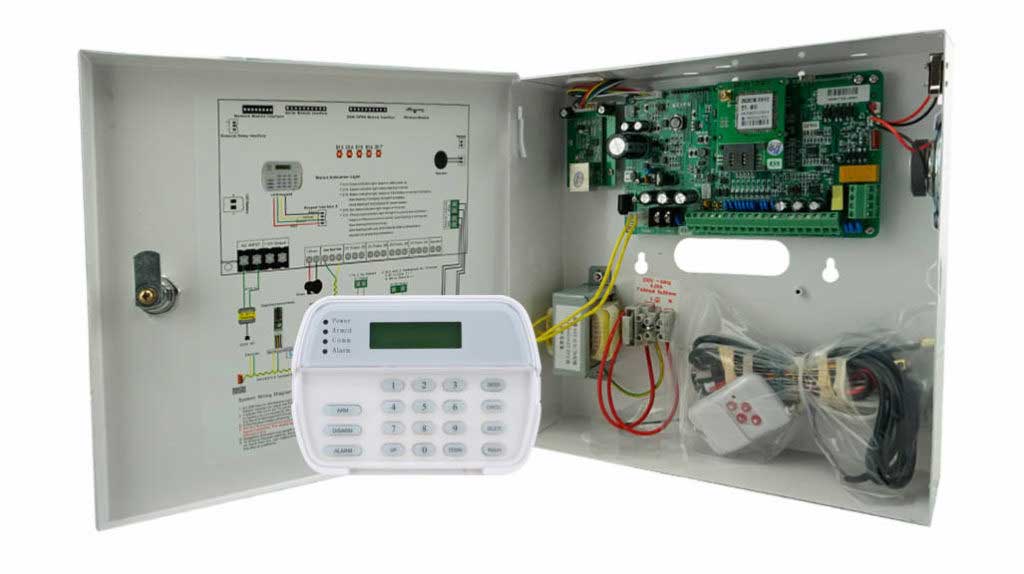
Many large alarm projects still rely on legacy LCD or button-based keypads.
From a professional standpoint, this creates measurable operational risk, including higher false alarm rates that can exceed 90% in poorly managed systems, leading to fines or lost monitoring contracts.
2.1 Cognitive Load and Human Error
Button-based interfaces force users to:
• Memorize codes
• Remember zone numbers
• Interpret cryptic text messages
• Navigate unintuitive menus
In high-turnover environments (warehouses, retail chains, logistics hubs), this leads to:
• Incorrect arming sequences
• Bypassed zones left unsecured
• Frequent false alarms
• Operators disabling systems entirely
Studies from industry sources show that human error accounts for up to 70% of false alarms, often traceable to confusing interfaces that overwhelm users during high-stress moments.
2.2 Lack of Visual Context
A touchscreen control panel provides visual clarity:
• Color-coded zones
• Graphical floor plans
• Instant fault identification
• Clear alarm origin display
Without this, operators guess—and guessing is dangerous in intrusion detection. For example, mistaking a fault code for a minor issue could ignore a genuine tamper attempt on a door contact.
3. The Touchscreen Control Panel as a Risk Management Tool (Not a UI Feature)
Professional buyers should evaluate touchscreen control panels through a risk lens, not a UI lens, quantifying benefits like reduced false alarms that can save thousands in annual costs.
3.1 False Alarm Reduction
Well-designed touchscreen control panels reduce false alarms by:
• Making open zones visually obvious
• Guiding users through correct arming steps
• Preventing incomplete arming
• Enforcing confirmation prompts
False alarms cost money, damage credibility, and increase regulatory pressure. In practice, panels with intuitive prompts can cut false dispatches by 50% or more, based on data from major monitoring centers.
3.2 Compliance and Auditability
Modern intrusion systems increasingly require:
• User accountability
• Event traceability
• Access logs
A touchscreen control panel can enforce:
• Named users instead of shared codes
• Visual confirmation of system states
• Timestamped actions for audits
This matters in regulated industries and large enterprises, where non-compliance can result in audits or penalties. Panels should support exportable logs in standard formats like CSV for easy review.
4. Core Hardware Architecture of a Professional Touchscreen Control Panel
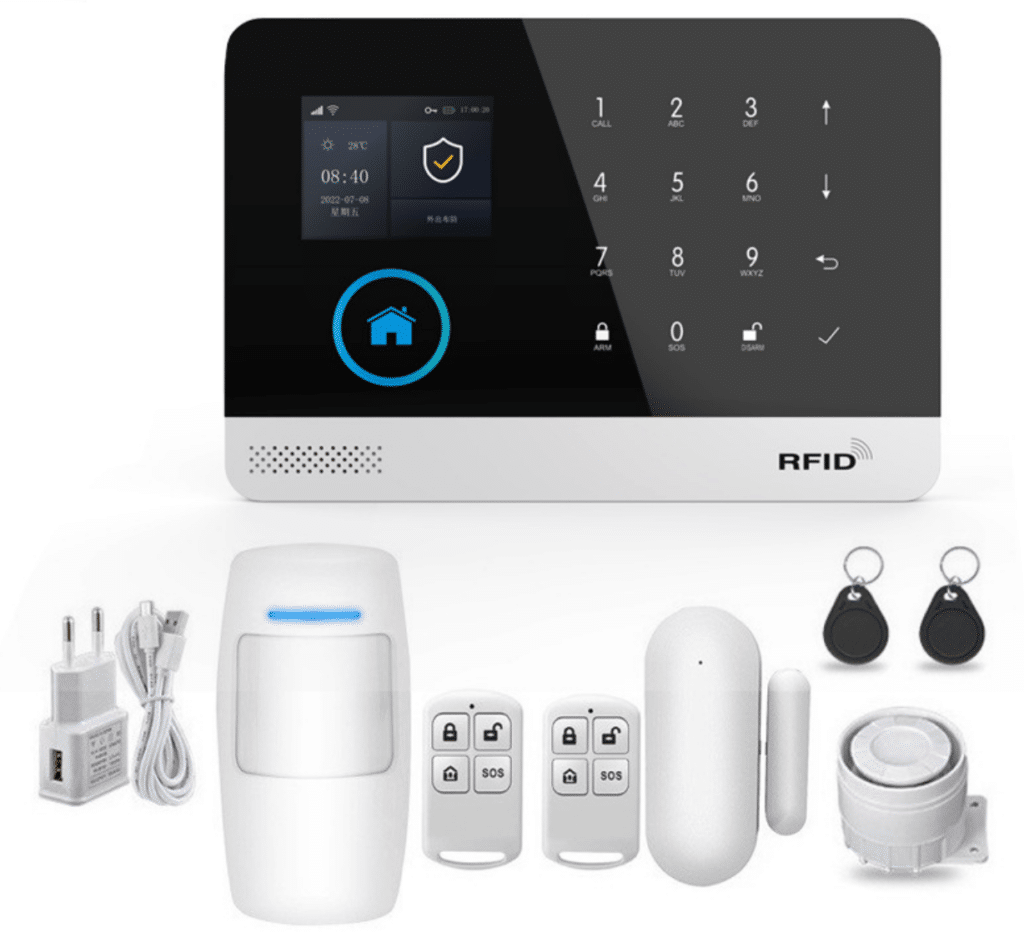
A touchscreen control panel is not just a display. It is an embedded system built for durability in demanding environments.
4.1 Key Hardware Components
A professional-grade touchscreen control panel typically includes:
• Industrial-grade touch display (capacitive or resistive, often 7-inch with 800×480 resolution for clear visibility)
• Embedded processor (ARM-based for efficient power use)
• Secure memory for configuration and logs (at least 1GB to handle extensive event histories)
• Power management module
• Battery backup interface (lithium-polymer, providing 24-hour runtime during outages)
• Multiple communication interfaces (Ethernet, RS-485, CAN, etc., plus cellular for redundancy)
Look for units with operating temperatures from 32°F to 104°F to ensure reliability in unconditioned spaces like garages or warehouses.
4.2 Why Hardware Quality Matters Long-Term
In bulk deployments, panel failure rates directly impact:
• Maintenance costs
• Truck rolls
• SLA compliance
• Brand reputation
Professional buyers should prioritize industrial MTBF ratings (mean time between failures, ideally over 100,000 hours), not consumer-grade tablets repurposed as panels. Cheap hardware often fails under vibration or dust, leading to costly replacements.
4.3 Best Practices for Touchscreen Control Panel Installation
To maximize reliability, follow these installation guidelines:
- Location Selection: Mount the panel in a central, accessible spot that’s not obvious to intruders—avoid placing it too close to entry points, as this reduces disarm time and increases false alarms. Aim for at least 30-45 seconds of entry delay.
- Power and Wiring: Use dedicated circuits to prevent interference from other appliances. Secure all cables to avoid loose connections, a common fault that triggers “trouble” signals.
- Testing After Install: Power on the panel, verify touchscreen responsiveness, and test all zones. Calibrate the touch interface if needed to prevent mis-taps in gloved hands, common in industrial settings.
Skipping these steps can lead to immediate operational issues, like unresponsive screens during emergencies.
5. Software Logic: Where Good Touchscreen Control Panels Separate Themselves
Most failures in touchscreen control panels are software failures, not hardware, often stemming from poor updates or incompatible integrations.
5.1 Alarm Logic Visualization
A high-quality touchscreen control panel must clearly represent:
• Zone types (perimeter, interior, 24-hour)
• Alarm states (armed, disarmed, alarm, trouble)
• Bypass logic
• Entry/exit timers
If operators cannot understand system state in 2 seconds, the interface has failed. Opt for panels with customizable dashboards that highlight priorities, reducing decision time in crises.
5.2 Role-Based Access Control
Professional deployments require:
• Installer roles (full config access)
• Supervisor roles (overrides and reports)
• Operator roles (basic arm/disarm)
• Maintenance roles (diagnostics only)
A touchscreen control panel should enforce permissions visually and functionally—not through hidden menus. This prevents unauthorized changes, like accidental zone bypasses, which could expose vulnerabilities.
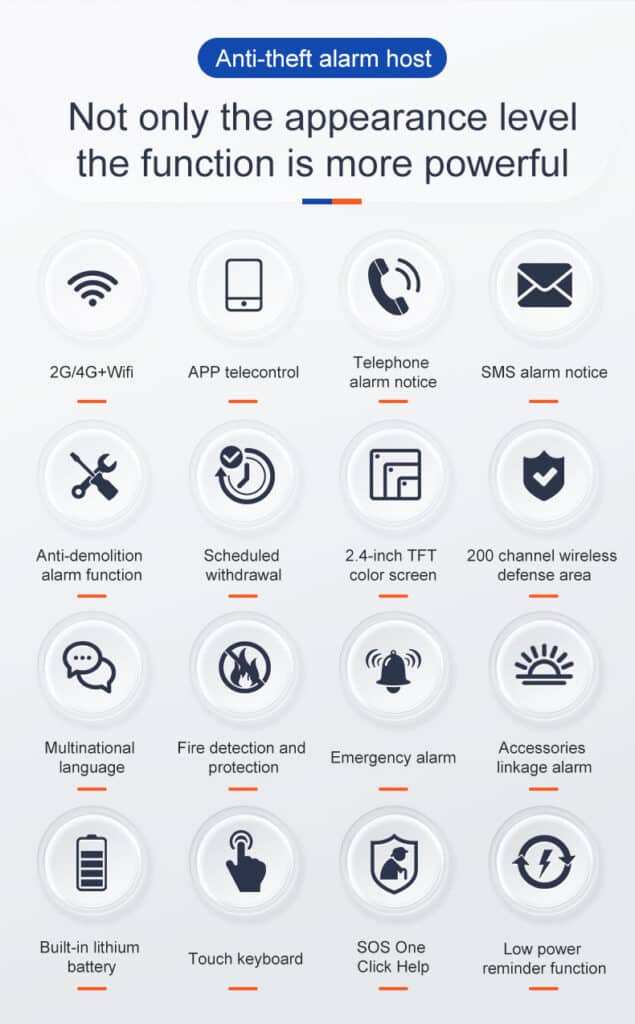
6. Step-by-Step: How a Touchscreen Control Panel Is Used in Daily Burglar Alarm Operations
This section addresses real operational workflows, not marketing scenarios, including common pitfalls and how to avoid them.
6.1 Daily Arming Procedure (Professional Environment)
Step 1: Operator approaches panel—the screen should wake automatically via proximity sensor to save energy.
Step 2: Touchscreen wakes and displays system overview, showing a color-coded summary (green for secure, red for issues).
Step 3: Operator visually confirms all zones are secure using the graphical floor plan.
Step 4: Panel highlights any open or faulted zones with icons and descriptions (e.g., “Door 3 Open—Check Lock”).
Step 5: Operator resolves issues (close door) or requests supervisor override via a secure code entry; avoid bypassing without logging reasons to maintain audits.
Step 6: Operator selects arming mode (Stay / Away / Night / Partition) from intuitive icons.
Step 7: Panel confirms arming and starts exit delay, displaying a countdown timer.
Step 8: Visual countdown and audible feedback provided; if delay expires with issues, the panel alerts without full alarm to allow correction.
This process dramatically reduces incomplete arming events. A key error to watch: rushing through without checking highlights, which can leave zones unsecured—always pause for the full scan.
6.2 Alarm Event Handling
When an intrusion occurs:
• Panel immediately displays alarm source with a zoomed-in map and details (e.g., “Perimeter Breach at Window 5”).
• Visual zone location reduces response time by guiding users directly to the issue.
• Clear prompts guide operators (e.g., “Verify Scene? Call Monitoring?”).
• Panic reactions are minimized through calm, step-by-step instructions.
If the alarm is false (e.g., due to a faulty sensor), log it immediately and schedule maintenance to prevent recurrence. Common mistake: Ignoring recurring faults, which erode system trust.
6.3 Routine Maintenance and Troubleshooting
Maintenance keeps panels reliable—neglect it, and small issues escalate.
Step 1: Access the diagnostics menu (usually under a locked installer mode).
Step 2: Check battery status; replace if below 80% capacity to avoid power failures during outages.
Step 3: Review event logs for patterns (e.g., frequent “communication errors” from weak cellular signals).
Step 4: Test sensors by walking zones—panel should flag any non-responsive ones.
Step 5: Update firmware via secure USB or remote link, but always backup configs first to avoid data loss.
Step 6: Clean the screen with a microfiber cloth to maintain touch accuracy; dust buildup can cause mis-taps.
For troubleshooting: If the screen freezes, power cycle the panel (unplug, wait 30 seconds, replug). Persistent issues like “FTC Trouble Receiver” often indicate wiring faults—inspect connections thoroughly.
7. Touchscreen Control Panels in Large-Scale, Multi-Site Deployments
For bulk purchasers, scalability matters more than aesthetics, especially when managing dozens of sites.
7.1 Standardization Across Sites
A standardized touchscreen control panel interface ensures:
• Faster staff training (e.g., uniform menus cut onboarding by 50%)
• Lower error rates
• Consistent security procedures
• Simplified support
Inconsistent panels lead to confusion, like varying arming sequences causing cross-site errors.
7.2 Remote Management Integration
Professional touchscreen control panels should integrate with:
• Central monitoring platforms
• Remote diagnostics tools
• Firmware management systems
This reduces lifecycle costs dramatically. For example, over-the-air updates can fix bugs without site visits, saving labor.
8. Touchscreen Control Panel Security: Attack Surface and Hardening
A neglected topic—yet critical, as connected panels expand vulnerability points.
8.1 Physical Security Risks
Touchscreen panels must be:
• Tamper-protected (e.g., supervised enclosures that trigger alarms on opening)
• Supervised for enclosure opening
• Resistant to vandalism (impact-rated screens)
Mount them securely to walls, away from easy reach, to deter smashing attempts.
8.2 Cybersecurity Considerations
Modern touchscreen control panels often connect to networks.
Professional buyers must ensure:
• Secure boot mechanisms to prevent malware loading
• Encrypted communications (AES-256 for data in transit)
• Role-based access enforcement
• Firmware signing to verify updates
A compromised panel compromises the entire alarm system. Common threats include Wi-Fi jamming or unauthorized app access—mitigate with multi-factor authentication and regular vulnerability scans. Avoid default passwords, a frequent exploit entry point.
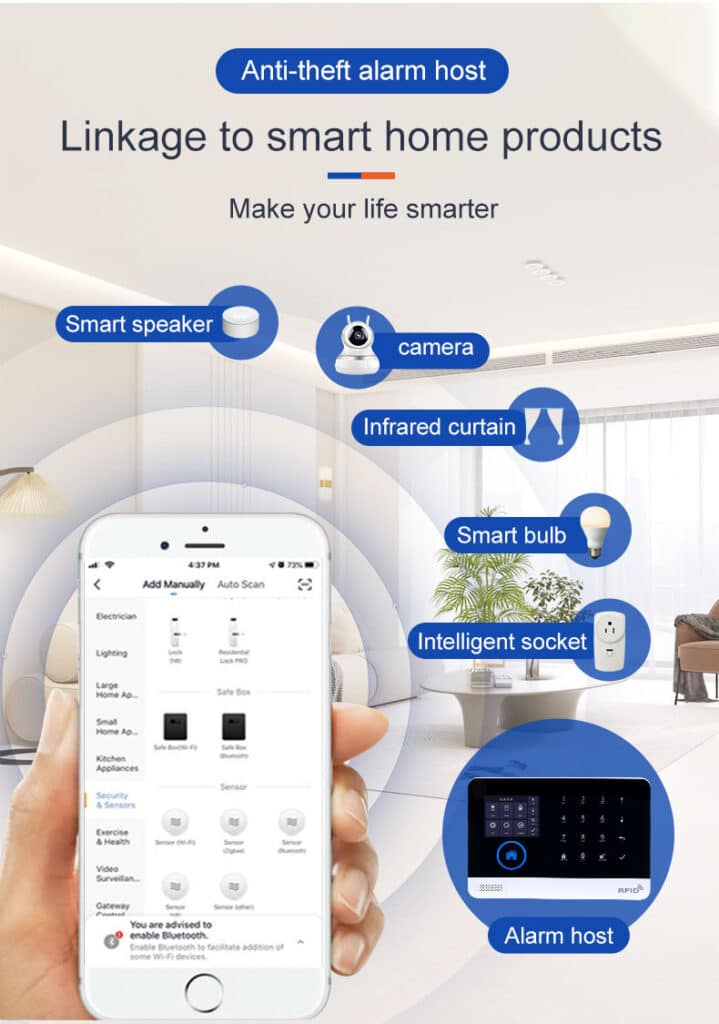
9. Integration with Modern Burglar Alarm Ecosystems
A touchscreen control panel should not operate in isolation; seamless integration amplifies its value.
9.1 Sensor Integration
Professional panels support:
• Wired intrusion sensors
• Wireless detectors (via protocols like Z-Wave or Zigbee for flexibility)
• Dual-technology devices (e.g., PIR and microwave for fewer false positives)
• Environmental alarms (smoke, flood)
Test compatibility during selection to avoid signal dropouts.
9.2 Third-Party System Interfaces
In advanced deployments, panels may interface with:
• Access control systems (e.g., card readers syncing with arming)
• Video verification platforms (live feeds on the touchscreen during alarms)
• Building management systems (HVAC shutdown on breach)
Integration quality separates professional systems from hobbyist setups. Use open standards like ONVIF for video to ensure future-proofing.
10. Common Purchasing Mistakes Bulk Buyers Make (And How to Avoid Them)
10.1 Overvaluing Consumer Features
Features like animations, app-like transitions, or gimmicks often:
• Increase failure rates
• Add complexity
• Reduce long-term reliability
Focus on core functionality; flashy extras can drain batteries faster.
10.2 Undervaluing Installer and Operator Experience
If installers struggle to configure the panel, or operators fear using it, the system will fail operationally—regardless of specs. Avoid by piloting panels with end-users and gathering feedback.
10.3 Ignoring Integration Compatibility
Buyers often overlook how well the panel meshes with existing ecosystems, leading to costly retrofits. Always verify protocols and test in a lab setup.
10.4 Skimping on Cybersecurity Features
Underestimating cyber risks can expose networks—insist on certified secure models to prevent breaches.
11. Evaluating Touchscreen Control Panels for Long-Term ROI
Professional buyers should evaluate panels over total cost of ownership, not unit price.
Consider:
• Failure rates (aim for <1% annual)
• Training time (intuitive designs cut it in half)
• Support complexity
• Firmware stability (regular, non-disruptive updates)
• Vendor roadmap (commitment to 5+ years of support)
A reliable touchscreen control panel pays for itself through reduced false alarms and lower maintenance costs. For ROI calculation: Estimate false alarm fines ($100-500 each) and multiply by reduction rate (e.g., 50% savings on 20 incidents/year = $1,000-5,000 annual).
12. Why the Touchscreen Control Panel Is Now a Competitive Advantage
In competitive security markets, system usability affects:
• Client satisfaction
• Contract renewals
• Brand differentiation
Clients remember systems that work smoothly under pressure, fostering loyalty and referrals.
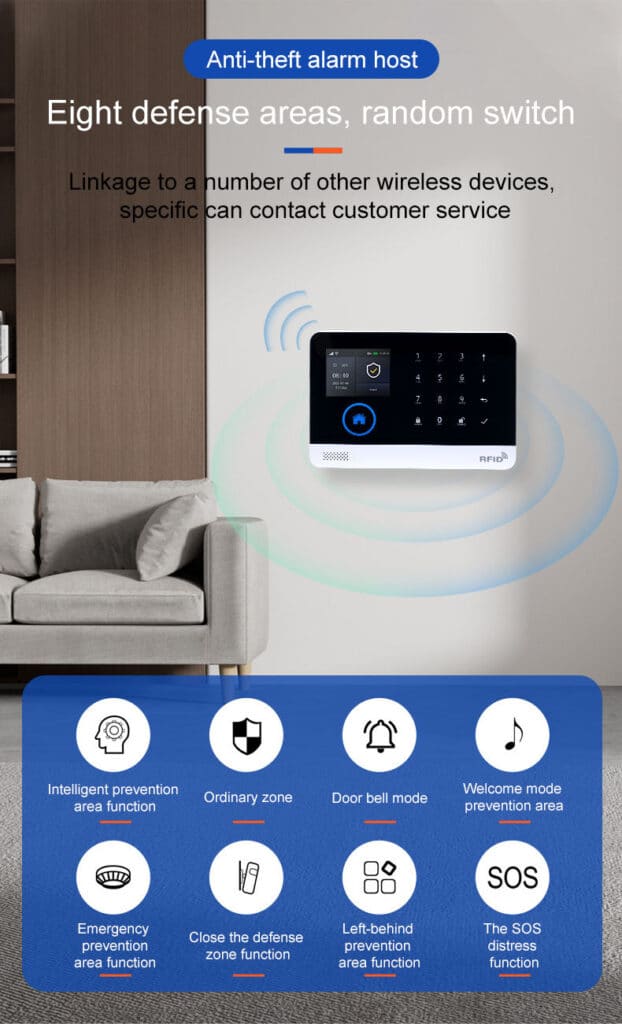
13. The Future of Touchscreen Control Panels in Burglar Alarm Systems
Looking forward, professional panels will evolve toward:
• Deeper visualization (e.g., 3D floor plans)
• Predictive diagnostics (AI-flagging potential failures)
• Smarter user guidance (context-aware prompts)
• Stronger security hardening (biometric logins)
But the fundamentals will remain the same: clarity, reliability, and control. By 2026, expect AI integration for anomaly detection and seamless smart home ties, making panels even more proactive against threats.
14. Conclusion: Choosing the Right Touchscreen Control Panel Is a Strategic Decision
For professional burglar alarm buyers, the touchscreen control panel is no longer optional—and no longer trivial.
It directly influences:
• Security effectiveness
• Operational discipline
• Cost control
• System reputation
A well-designed touchscreen control panel transforms a burglar alarm system from a technical installation into a usable, enforceable security solution.
If you are sourcing, deploying, or upgrading burglar alarm systems at scale, your touchscreen control panel choice deserves the same scrutiny as sensors, communication paths, and monitoring infrastructure.
Done right, it becomes the silent enforcer of security discipline—every day, at every site.